This is called ‘Progressive Web Application’. It’s not a true windows or android app but a browser-based one. Though it’s designed to work locally on your device in offline mode with minimal UI wrappers, you can have a shortcut for it, uninstall it and it acts mostly like a real application on your device.
The whole ‘app’ thing is experimental at the moment. There are known issues and I’m trying to work on them in parallel with the game. Though you might catch something I don’t know about – feel free to share it!
UPD: From what we see for now it works quite stable on desktops. However there are still issues on mobile because of aggressive memory saving policies, as many devices simply try to erase the game after a few days of not playing. In this case see the ‘Troubleshooting’ section.
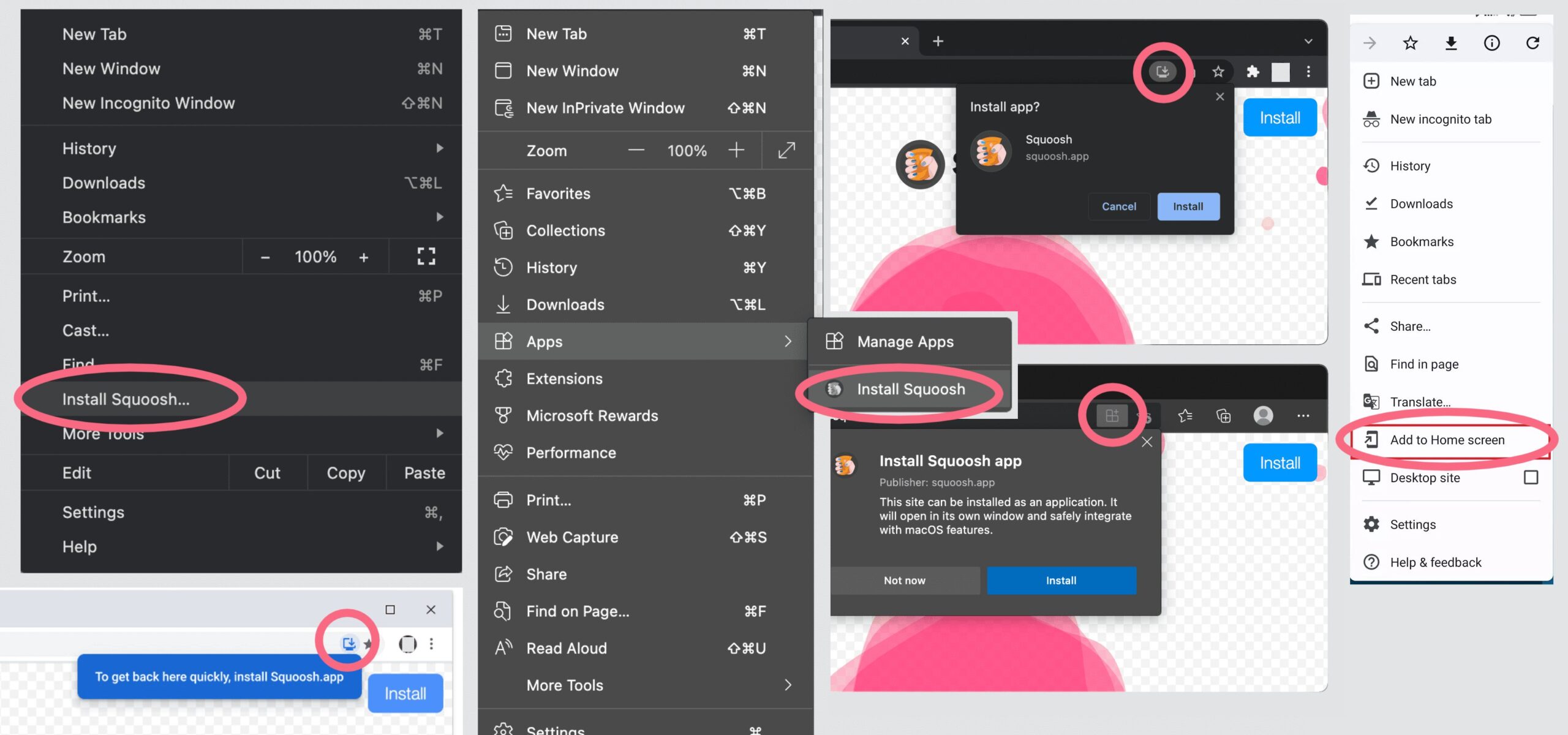
After clicking the ‘Play’ button you’ll be redirected to the app page, where you can install it on your device. Some browsers will invite you to install it automatically, some have the installation button around the address bar, some hide it in their menu (I collected a few examples of how this might look). Wait for it to be installed… then it will appear in your list of installed applications and might even get a desktop shortcut (this depends on your settings).
UPD: The latest version should show the ‘install’ button over the game screen, so you should not look for it in menus anymore.
Once there is a game update, the ‘server’ version will be updated as well. However the actual Patreon subscription is required to access it. You can return to this page and reinstall your game the same way: press ‘Play’, follow the link and wait until your game is updated in the browser. After that the new version will be available for offline play again.
UPD: since v1.8.0.5 once the version update is available the app will show the ‘<‘ badge right side. Click it for quick access to the ‘download’ page.
“I get numerous visual glitches when playing”
Fore some reason Unity sometimes feels bad running like this. Try to simply restart the game.
“It doesn’t allow me to enter my credentials”
See the previous item.
“I ran the app and see only the empty screen and a small error message”
- In most cases going back to the ‘download’ page and reopening the app from it should solve the problem. Wait for ‘caching’ to end and try the game again.
- If app doesn’t run locally after all, try start it from the download page and add
#reinstallto the URL when it’s loaded. - Sometimes you might need to completely reinstall the application: delete it, go to the download page and re-install it again from scratch.
Either the game wasn’t cached properly OR the cache was cleaned. This is known to happen more often on old devices, if you’re using memory cleaning utils or if you didn’t run the game for a long time (which might be a few days, weeks or months, depending on your device), or after some browser updates.
Updating from v1.8.0.4
App version 1.8.0.4 contains few errors, so updating from it to later versions doesn’t work properly. The key feature to recognize it, it has the ‘full screen’ button right side, it was moved to the left in the next release.
When updating from it, it will probably say about error when caching OR it might invite you to click to refresh the page infinitely. In both cases please close the tab (or all tabs if you have multiple tabs with the app opened) and re-open it in a new tab for changes to apply.
If this doesn’t help (and you still get the ‘full screen’ button right side), try to clear the cache for the app/site and refresh the page. In desktop chrome this requires to refresh the page with Ctrl+F5. In mobile chrome open the page, tap the three-dot menu > Info icon (i) > Cookies and site data, and tap the Delete. For other platforms/browsers google for ‘android chrome clear cache for one site’ (insert your platform and browser) to get the detailed instructions.